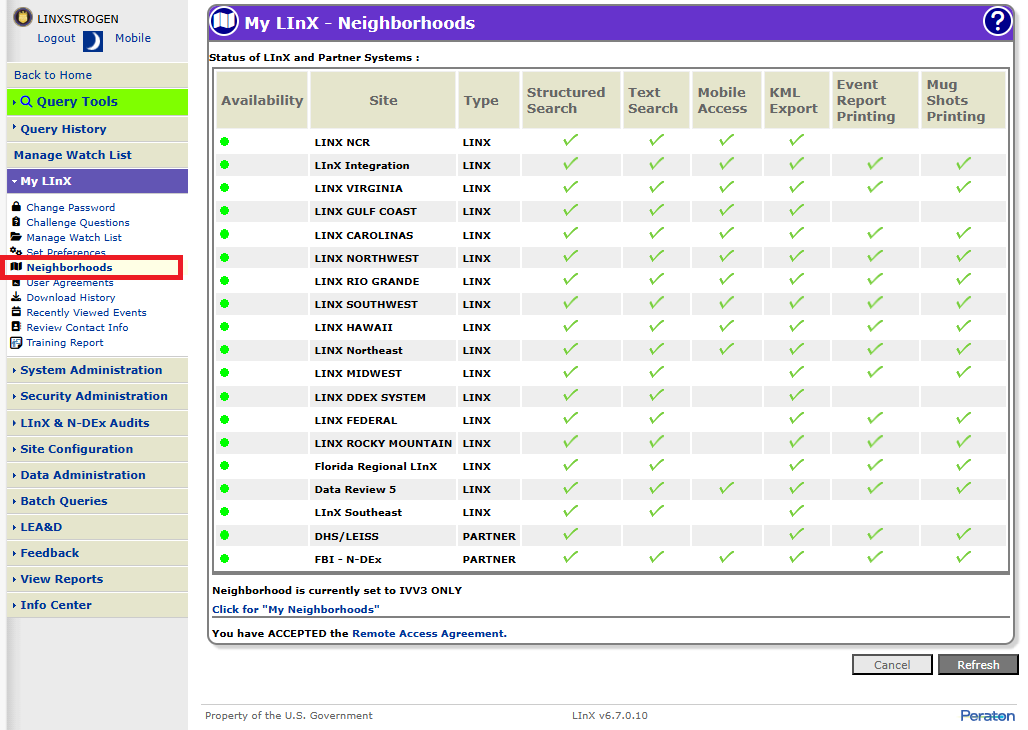
The Neighborhoods screen allows a user to view the system(s) to which they have access for data searches. Systems available for access by the user are dependent upon the following conditions:
Whether or not the user has accepted the Remote Access Agreement.
If the Agency to which the user belongs has been denied availability to a particular system by the System Administrator.
Tactical and Analytical LInX users can access Neighborhoods from either the My LInX title page, or from the menu bar located along the left side of the screen.
The user may review the list of systems to which they have access by selecting Neighborhoods under My LInX.
The following image is a sample of the Neighborhoods screen.
If the user has not accepted the Remote Access Agreement, only the user's "Home" system will be listed under Status of LInX and Partner Systems as being available for data access. Only the agencies within that system will be available for data searches by the user.
In addition, the statement at the bottom of the screen will read "You have REJECTED the Remote Access Agreement". Clicking on the Remote Access Agreement link will open the contents of the agreement in a separate window, and provide the user with the choice to accept (I Agree) or reject (I Do Not Agree) the agreement. Once a selection is made, the Remote Access Agreement window will close automatically.
If the Remote Access Agreement had been previously rejected, accepting the agreement will cause the Status of LInX and Partner Systems listing to update to include other systems available to the user in addition to their "Home" system.
The Click for "My Neighborhoods" link opens the Neighborhood Selection menu, which includes a description of the screen functionality. From the Neighborhood Selection screen the user has the ability to create, select, view, edit, and delete neighborhood contents, as well as set a default neighborhood against which all subsequent searches will be run, until a different neighborhood selection is made. Only the systems listed in the Status of LInX and Partner Systems pane will be displayed in the Neighborhood Selection menu.
Additional help for Neighborhood Selection can be found within the Neighborhood Selection functionality by clicking on the Online Help button [ ] located in the upper right-hand corner of the Neighborhood Selection screen.
An alternative to selecting agencies using the Neighborhood Selector is to use the Map Selection feature. Access to Map Selection can be accessed from any search page except Traffic Stop Search, by clicking on the Change Map Region link. Further discussion of this feature is covered under the Query Tools Neighborhood Selection topic.
Tactical and Analytical users should contact their System Administrator or Agency Administrator when they are having problems accessing or using LInX. Only System Administrators are authorized to contact the LInX Help Desk.